BLANK Mint Bot
The most advanced NFT mint automation dashboard - multi-phase detection, multi-wallet execution, sub-second speed.
Quick Start
Register & Get Approved
Create an account using email/password or Google sign-in. New registrations are placed in a pending state and require admin approval before you can access the dashboard.
Set a Master Password
Once approved, on first visit you'll be asked to create a master password. This encrypts all your wallet private keys using AES-256-GCM.
Add Wallets
Import private keys, paste a seed phrase to generate wallets, or connect MetaMask. All keys are encrypted in your browser's localStorage.
Enter a Collection
Paste an OpenSea collection URL or slug. The bot auto-detects mint phases, prices, eligibility, and supply.
Configure Gas & Mint
Set your gas strategy, select wallets, and hit Mint Now or Schedule for a future phase.
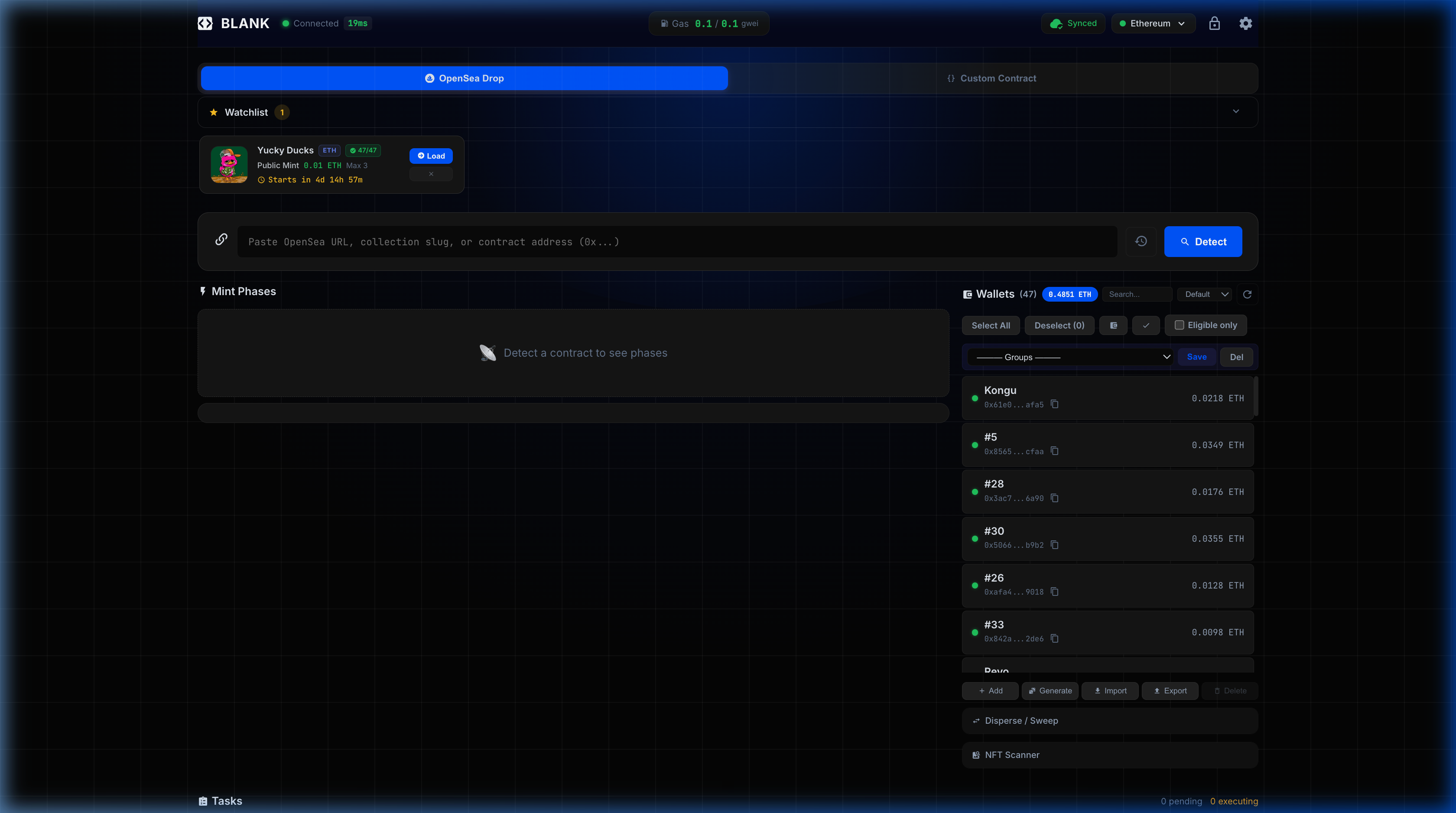
The BLANK dashboard with a loaded collection showing mint phases, wallet panel, and mint report.
Wallet Setup
Adding Wallets
Open the Wallets panel on the dashboard. You have several options:
- Import Key - Paste a private key (0x-prefixed or raw hex)
- Seed Phrase - Enter a BIP-39 mnemonic + number of wallets to derive
- Generate - Create a new random wallet
- MetaMask - Connect your browser wallet (view-only, for signing)
Wallet Security
Aliases
Hover over any wallet and click the pencil ✏️ icon to rename it. Type a new name and press Enter to save, or Escape to cancel. Aliases persist across sessions and appear throughout the dashboard, NFT Scanner, and mint reports.
OpenSea Drop Mode
This is the primary mode. Enter an OpenSea collection URL or slug:
The bot will automatically:
- Fetch the drop contract and mint phases from OpenSea's GraphQL API
- Detect phase types: Public, Allowlist, Signed
- Check wallet eligibility for each phase
- Show real-time supply minted, time remaining, and price
Phase Cards
Each detected phase shows a card with:
| Field | Description |
|---|---|
| Status | 🟢 Live, 🟡 Upcoming (with countdown), 🔴 Ended |
| Price | Mint price per NFT in ETH |
| Max / Wallet | Per-wallet mint limit (adjusted for already-minted) |
| Eligible | Number of your wallets eligible for this phase |
| Supply | Progress bar showing minted vs. total supply |
Advanced Options
Expand the Advanced Options section on any phase card to access additional controls:
- Turbo - Enable aggressive gas boosting for top-of-block inclusion
- Gas Ceiling - Set a maximum gas cost (in gwei or as a cap) to prevent overspending
- Mode - Select the minting execution strategy (see Mint Modes)
- Auto-Transfer - Automatically transfer minted NFTs to a specified wallet
- Auto-List - Automatically list minted NFTs on OpenSea (see Auto-List)
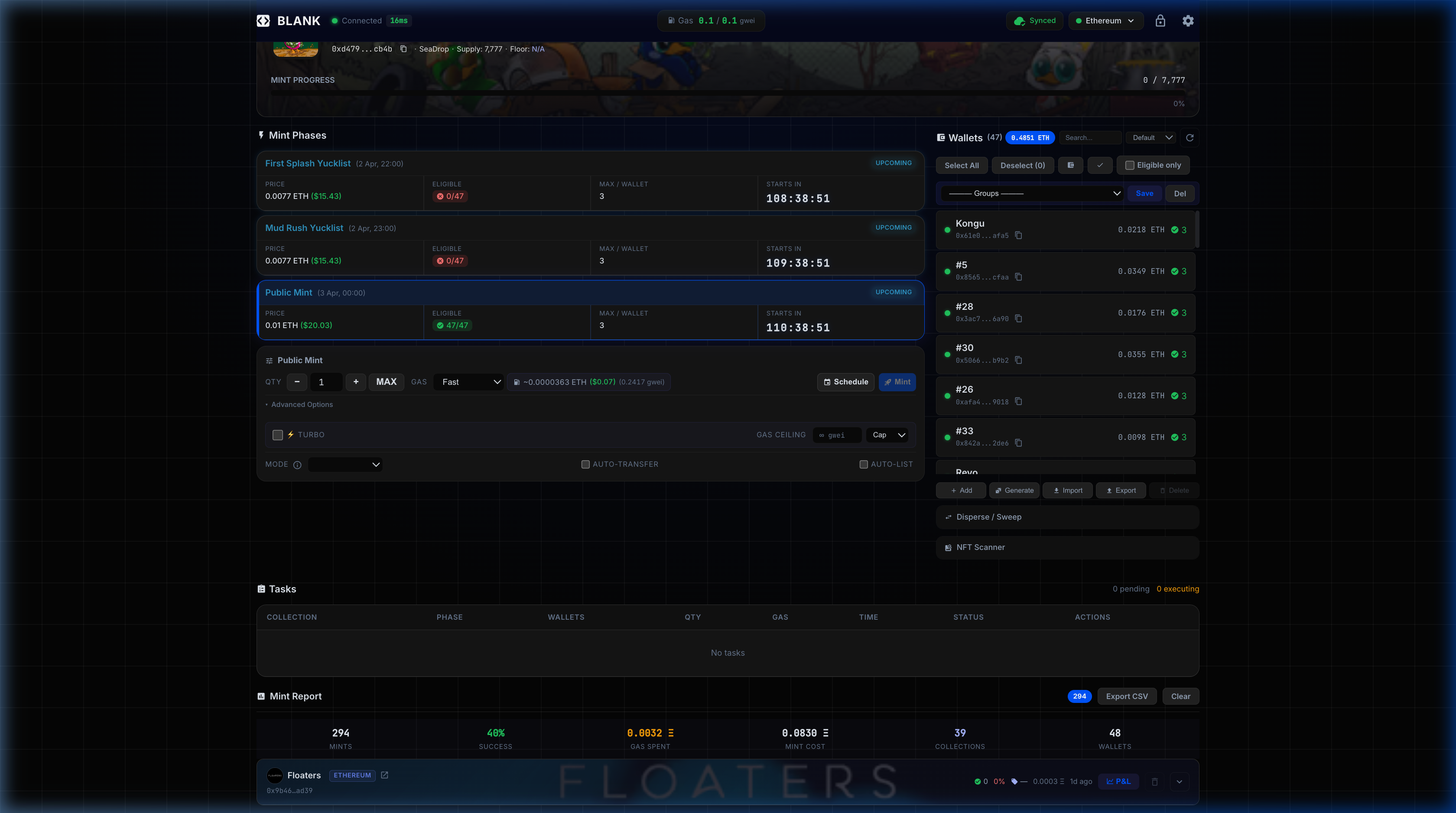
Public Mint phase card with expanded Advanced Options showing Turbo toggle, Gas Ceiling, and Mode selector.
Custom Contract Mint
For non-OpenSea mints, use the Custom Mint panel:
- Paste the contract address - ABI is auto-fetched from Etherscan
- Select the mint function from the dropdown
- Fill in parameters (quantity, proof, etc.)
- Set the value (ETH to send) and gas config
- Click Execute
Gas Configuration
Gas speed is configured via the GAS dropdown on each phase card. Choose a preset or set custom values:
| Speed Preset | Description |
|---|---|
| Slow | Uses base fee only with minimal priority fee - cheapest option, slower inclusion |
| Normal | Standard gas settings - good balance of speed and cost |
| Fast | Higher priority fee for faster block inclusion - recommended for competitive mints |
| Turbo | Maximum gas boost with aggressive tip multipliers - aims for top-of-block inclusion |
| Floor Profit | Auto-calculates gas budget as a percentage of the collection floor price to stay profitable (uses 80% of budget) |
| Custom | Manually set Max Fee (gwei), Priority Fee (gwei), and Gas Limit |
Turbo Mode
Enable the ⚡ TURBO checkbox in Advanced Options for an additional gas boost on top of any speed preset. Turbo mode adds extra tip and priority multipliers designed for top-of-block positioning in highly competitive mints.
Gas Ceiling
Set a Gas Ceiling (in gwei) to cap the maximum gas cost per transaction. Choose Cap mode to hard-limit the total gas, preventing runaway costs during gas wars.
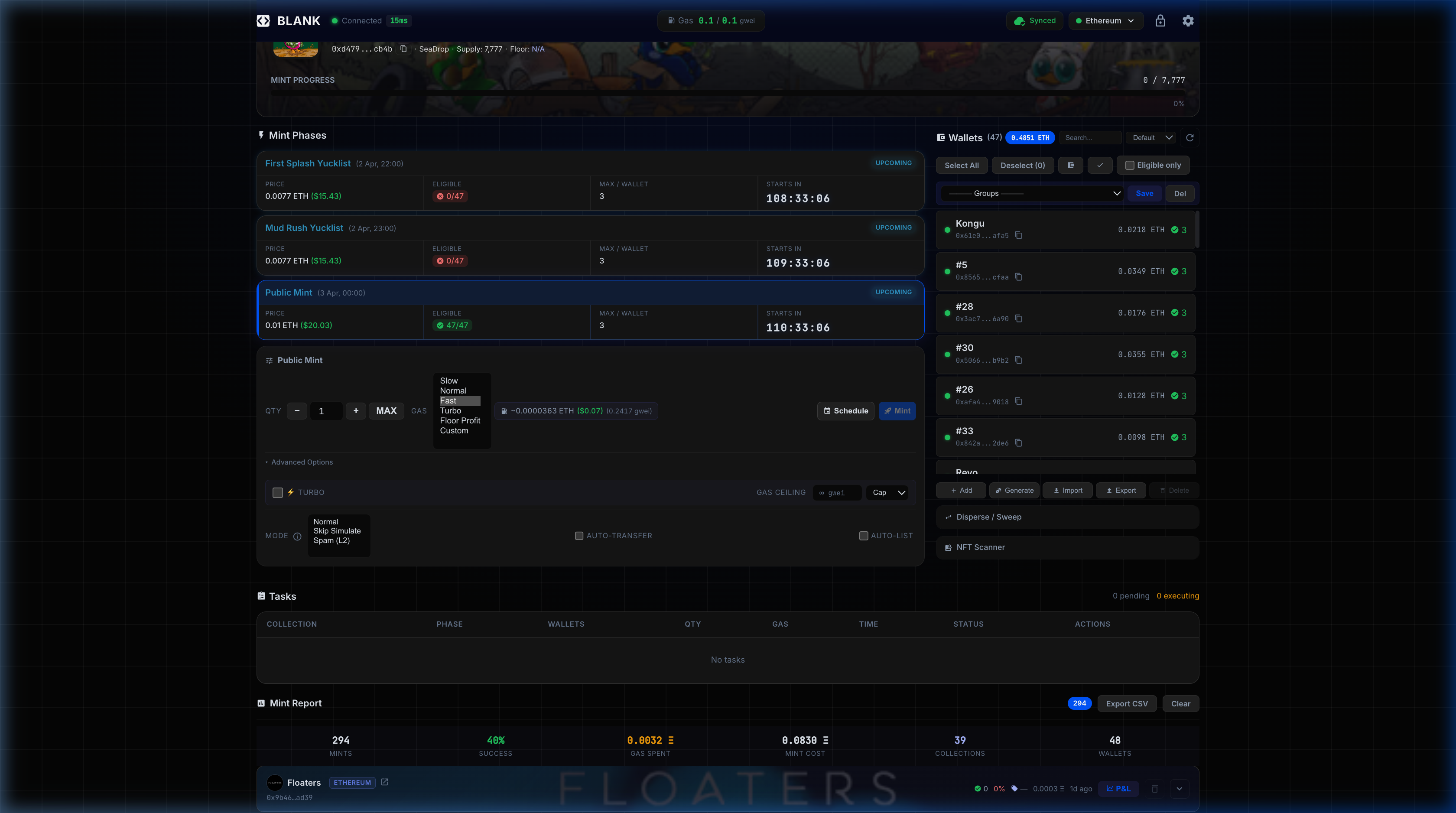
Gas speed dropdown showing all presets (Slow, Normal, Fast, Turbo, Floor Profit, Custom) and Mode options (Normal, Skip Simulate, Spam).
Mint Modes
Choose a mode in Advanced Options → Mode:
| Mode | How it Works | Best For |
|---|---|---|
| Normal | Simulate → Send → Confirm sequentially. Safest mode - each transaction is simulated before sending to catch errors early. | Most mints - safe default |
| Skip Simulate | Skips the simulation step and fires transactions immediately. Includes Auto-Warmup - 60 seconds before the scheduled mint time, the bot pre-builds calldata and pre-signs transactions so they can be broadcast instantly when the phase goes live. | Competitive public mints where speed is critical |
| Spam (L2) | Sends multiple rapid-fire transactions per wallet. Designed for L2 chains (Base, Arbitrum, etc.) where gas is cheap and speed competition is fierce. | L2 chain mints with high competition |
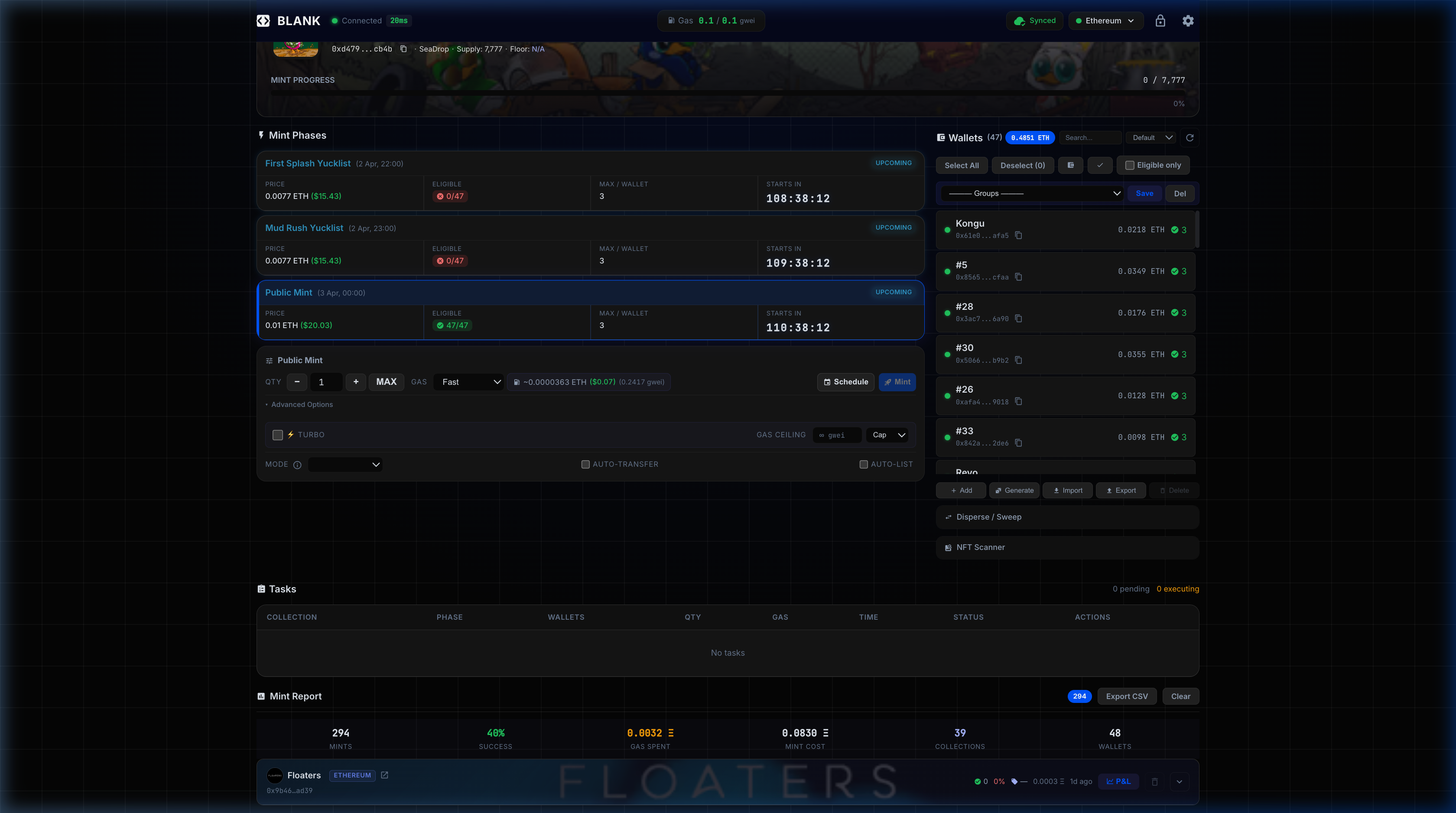
Hover the ℹ️ icon next to Mode for a quick explanation of each option.
Scheduling
If a phase hasn't started yet, click Schedule instead of Mint Now. The bot will:
- Wait until the phase start time
- Re-validate the phase (check for time changes)
- Execute the mint at the exact start time
In Server mode, the schedule is stored on the VPS. You can close your browser and the mint will still fire.
Server Mode Overview
Server mode runs minting from a VPS datacenter (Ashburn, Virginia) with 1-3ms RPC latency vs. ~150ms from a typical browser connection.
How It Works
- You click Mint/Schedule with 🖥️ Server mode selected
- Your browser decrypts wallet keys locally
- Keys are sent to the server over HTTPS (end-to-end encrypted)
- Server signs and broadcasts transactions from the datacenter
- Results are returned to your browser
- Keys are discarded immediately - never stored on disk
Server Usage
No setup required - just select 🖥️ Server from the Mode dropdown and mint/schedule as usual. The dashboard handles everything automatically.
Server Management
The server runs via PM2 on the VPS:
Mempool Watcher
The mempool watcher monitors pending transactions via WebSocket. It can detect:
- Phase transitions (e.g.,
setPhase()calls) - Other users minting (gauge competition)
- Contract state changes
Enable it from the dashboard's Mempool panel. Requires a WebSocket RPC URL (e.g., Alchemy, Infura WSS).
Auto-List on OpenSea
After a successful mint, the bot automatically lists your NFTs on OpenSea using the GraphQL ListingFlow API with Seaport 1.6. Configure in the phase card's advanced options:
- Enable Auto-List - Toggle on
- List Price - Fixed ETH price, or "Floor Undercut" mode (auto-calculates from collection floor with configurable undercut %)
- Duration - Listing duration (default: 90 days)
Auto-Transfer
Auto-transfer consolidates minted NFTs to a single wallet. If the destination wallet is also a minting wallet, it is automatically skipped (no wasted gas on self-transfers).
NFT Scanner
The NFT Scanner (in the Wallets panel → NFT Scanner section) lets you scan all your wallets for NFTs from a specific collection, with powerful tools:
Scan & View
- Enter an NFT contract address → scans all wallets in parallel via OpenSea API
- Shows thumbnails, token IDs, and collection name
- Rarity Tiers - color-coded badges based on OpenRarity rank:
- 🟡 Legendary (gold, glowing) - top 1%
- 🟣 Rare (purple) - top 10%
- 🔵 Uncommon (blue) - top 25%
- ⚪ Common (gray) - everything else
- Listing Prices - shows a green badge for listed NFTs with their current listing price in ETH
Transfer
Select NFTs → choose a destination wallet (or enter an external address) → click Transfer Selected. Each NFT is transferred individually with on-chain confirmation.
List on OpenSea
List scanned NFTs directly from the scanner:
- Set a fixed price in ETH, or toggle "List at floor price" with configurable undercut %
- Choose listing duration (1 day, 7 days, 30 days, 90 days, 6 months)
- After listing, the price badge auto-updates on each token card
Analytics & Reports
Mint Report
Every mint is recorded with transaction hash, gas cost, status, and timing. Reports are grouped by collection and include P&L analysis.
Analytics Panel
Shows aggregate statistics:
- Summary cards - total mints, success rate, gas spent, mint volume
- Collection breakdown - per-collection mint count, cost, gas
- Wallet leaderboard - per-wallet success rate and NFT count
- Recent activity - paginated transaction log
Security
| Layer | Protection |
|---|---|
| Master Password | Required to decrypt wallet keys. Lost password = keys inaccessible. |
| Key Encryption | AES-256-GCM - military-grade encryption for all private keys |
| localStorage | Keys stored encrypted in browser. Never exposed in plaintext. |
| Server Mode | Keys sent over HTTPS only. Held in RAM, never written to disk. Discarded after use. |
| Cloud Sync | Optional Firestore sync - encrypted data only. No plaintext keys ever leave your device. |
| Multi-Account Isolation | Switching accounts automatically clears all wallet data and mint reports from the previous session. Each user's data is fully isolated - no cross-contamination between accounts. |
| Whitelist Access | New registrations are placed in pending state. Only admin-approved accounts can access the dashboard, preventing unauthorized usage. |